 SealedPocket
PRIVATE PHOTO DIARY
Keep the photo. Keep the part you didn’t post.
A photo remembers the view. A private diary remembers what it meant to you. Bring pictures and personal thoughts together in a separate, password-protected local space.
Version 1.3.11 is available in the verified US and Taiwan storefronts. Check your local App Store for features and prices.
The walk was ordinary. What you want to remember isn’t.
You take a picture by the lake. The photo is worth keeping, but so is the thought you had there. In the diary update, place that picture beside a few sentences, add a heading for what mattered, and keep the entry for yourself rather than turning it into a social post.
An example workflow, not a customer testimonial. The screenshots use fictional demonstration content.

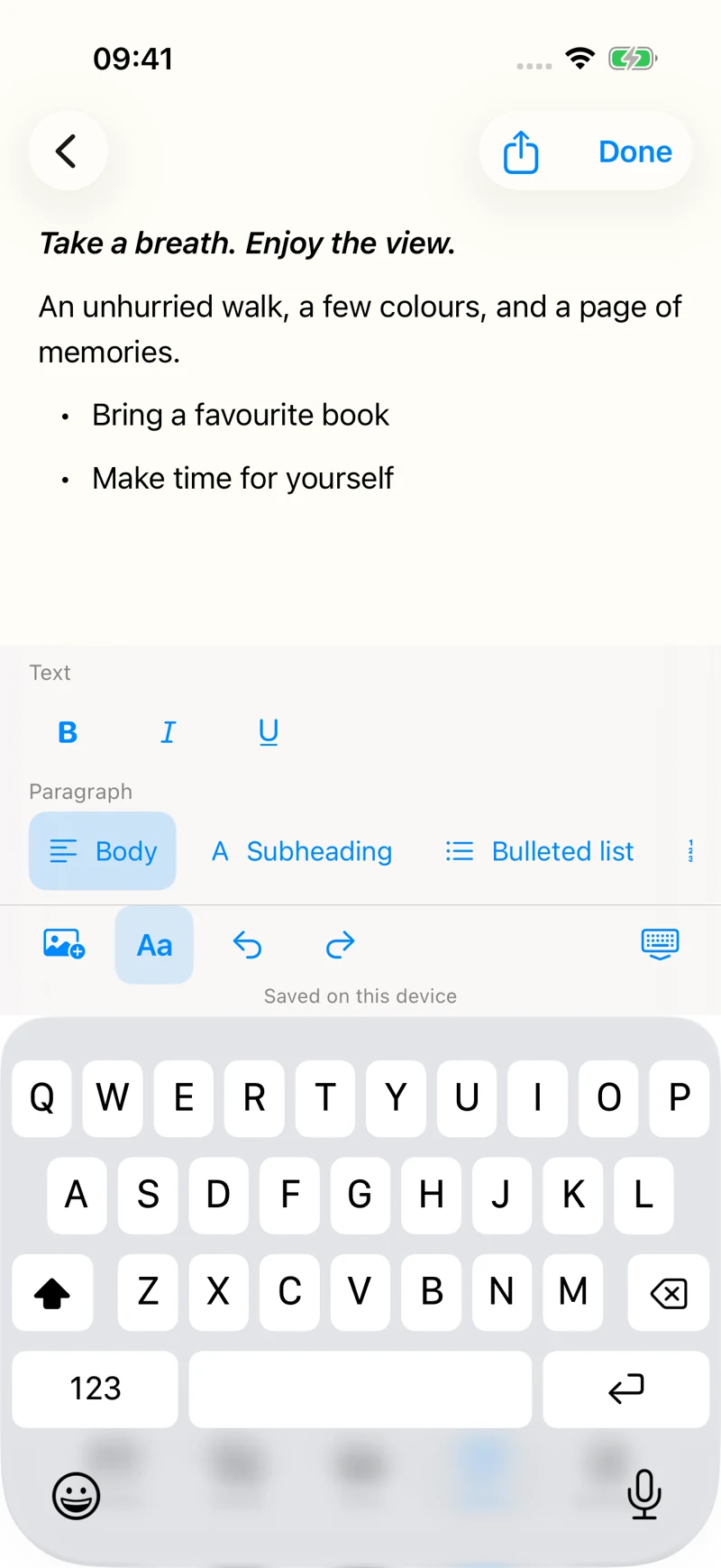
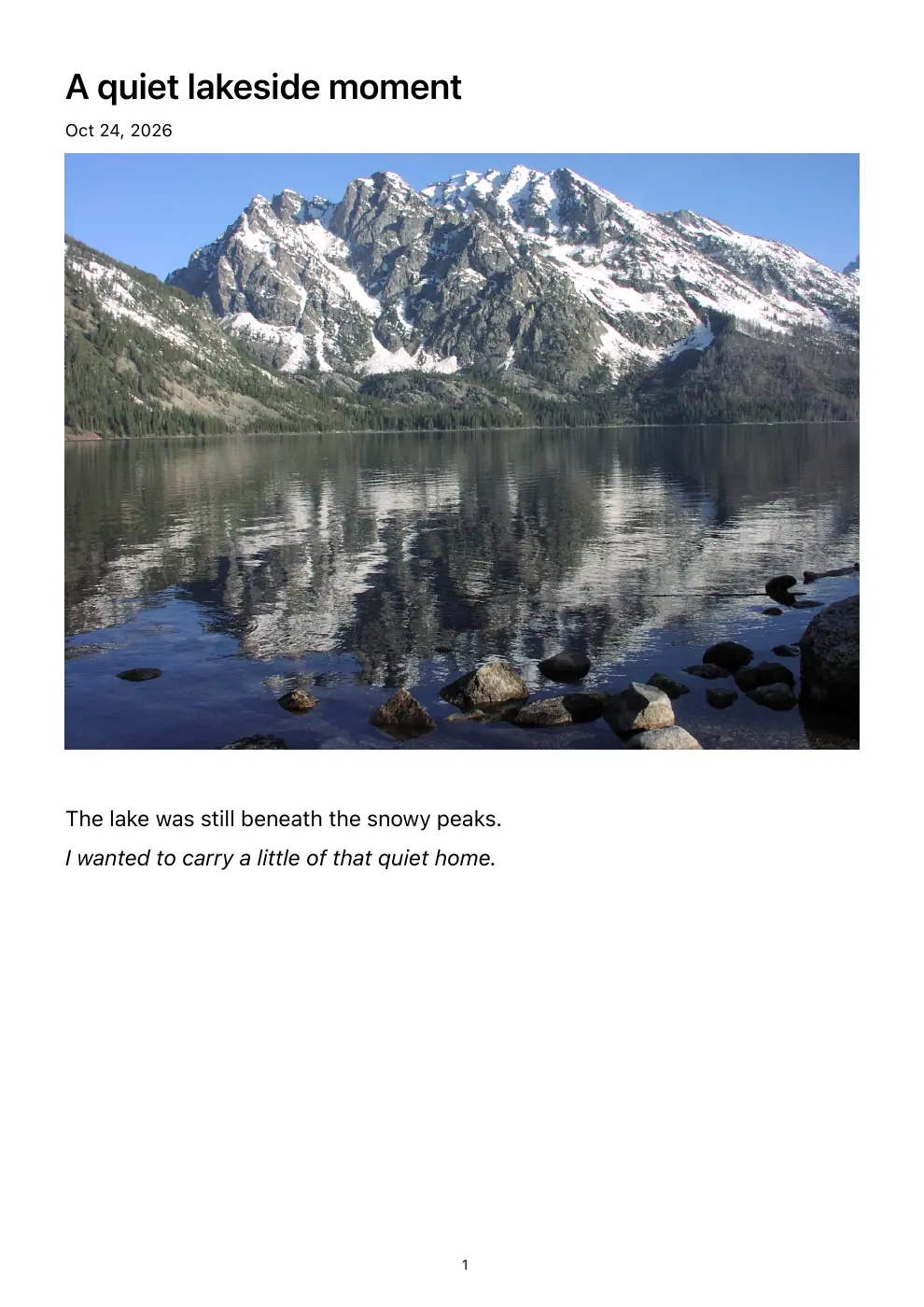
Actual app screenshots using fictional demonstration content.
Photo diary on a standard iPhone layout (32 seconds)
Edited app recording in the iPhone 17 simulator, with English UI and fictional diary content. Not a physical-device recording. This clip does not show PDF export; the separate Duo walkthrough below includes the actual exported PDF.
Watch on YouTube →Duo simulator walkthrough (37-second edit)
Edited app screen recording in the Duo simulator with fictional diary content. This is not a standard iPhone or physical-device demonstration, nor an uninterrupted recording. The final five seconds show the actual exported PDF page, not an in-app preview.
Landscape photograph: National Park Service (NPS), public domain. Photo source
Open the actual exported sample PDF (fictional diary, about 638 KB)
One photo, three sentences: a small private diary entry
You do not need to document your whole day to keep something worth returning to. Start with one photo and the detail it cannot show: what caught your attention, how the moment felt, and what you want to remember.
The actual editor screenshots show a photo-insert button and an Aa formatting button, with bold, italic, underline and paragraph styles. Practise with fictional content before importing private material.
1. Pick one ordinary moment
Choose a photo you are comfortable keeping in your diary: a cup on a table, the light after a walk, or a view from a window. You do not need a portrait or a location-rich photograph. Before importing, check whether the picture contains another person's private information. Importing a copy into a diary is not the same as deleting its source from Photos.
2. Give the entry a title you will recognize later
Use something specific, such as 'The walk after the rain', rather than 'Today'. Write a sentence before the photo to establish the moment, then put the photo between the paragraphs where it belongs. Continue the thought below it. In SealedPocket's diary editor, photos can sit between paragraphs instead of becoming a separate pile of attachments at the end.
3. Copy these three prompts
What happened: ______
What the photo does not show: ______
What I want to remember: ______
Fictional example:
What happened: I took the longer route home after the rain.
What the photo does not show: I had been rushing all morning and finally stopped checking the time.
What I want to remember: The day did not need a special event to be worth keeping.
These are writing prompts, not questions you must answer and not a mental-health treatment. Skip any prompt that does not fit. A private diary does not need to become another daily obligation.
4. Format only what makes the entry easier to revisit
A short heading can separate the story from a small list of things to remember. Bold a phrase if it helps you find it later; leave most of the writing as normal body text. SealedPocket supports headings, emphasis and lists, but the point of formatting is to support your words, not make every entry look like a designed document.
Finish editing, return to the entry list, and reopen the entry. Check that the title, paragraphs and photo order are as intended. Before storing important memories in any new workflow, try this with harmless sample content first. The screenshots on this page are actual app screens with fictional demonstration content.
5. Decide whether you need a PDF copy
You can leave an entry in the diary without exporting it. If you want a readable copy for saving or printing, SealedPocket's PDF export requires the existing VIP entitlement. It is not a free-tier feature.
After exporting, open the actual PDF in the destination you selected. Check the text, page breaks and photos, rather than relying only on the in-app preview. A PDF is a reading/printing copy; do not assume it can restore an editable diary. It also exists outside the vault. A shared PDF is controlled by the app, service or person you send it to. Avoid sending an intimate entry just to test whether export works; use a fictional one.
From one photo to a whole day
- Start with a title that stands apart from the entry.
- Write a paragraph, insert a photo, then keep writing below it.
- Use a heading, list or quote when it helps your story.
- Save your entry in the vault. VIP members can create a PDF copy when needed.
Words and photos, in one flow
Place photos between paragraphs instead of keeping every image at the end. Read an entry without immediately opening the keyboard.
Formatting that means something
Use clear headings, bold, italic, underline, lists and quotes. A distinct title and readable body make longer entries easier to follow.
A copy you can keep
Existing VIP members can export a note as a PDF for saving or printing. PDF export is a paid VIP feature, not part of the free tier.
Choose it for your workflow, not because every diary needs another app.
SealedPocket fits when…
You want a separate local collection that brings private photos, files, notes and recordings into the same app, without creating an app account or setting up automatic app cloud synchronization. The diary editor adds photo-and-text composition to that collection.
Apple Journal may already be enough
If your goal is simply to record daily experiences with photos, start with Journal. Apple documents photo entries and locking the app. SealedPocket is not the only way to keep a private diary, and we do not claim it is more secure than Journal.
Locked Apple Notes may already be enough
For a few private written notes, Apple Notes supports locking eligible notes with a device passcode or a separate Notes password. Check Apple’s attachment and account restrictions before choosing it. You may not need a separate diary app.
Choose something else for shared or synced journals
SealedPocket is not a collaborative journal or an automatic cloud-sync service. Local storage also means you need a separate backup plan; Restore Purchases will not recover your diary.
Built-in alternatives, in Apple’s own documentation
Apple: get started with Journal
Apple: protect journal entries
Official sources checked October 24, 2026.
Apple Journal also supports exporting, printing and saving entries as PDFs; PDF output is not exclusive to SealedPocket. Apple’s documentation
Questions before you start
Do I need VIP to write a diary?
No. After unlocking your space, you can create text diary entries without VIP. Inline diary photos do not count toward the shared 75-item media allowance for photos, videos, audio and files. Each entry supports up to 20 photos, totaling no more than 32 MiB after JPEG processing; storage is not unlimited. Exporting a diary as a PDF requires VIP.
Can I make a photo diary without an app account?
The diary editor works inside SealedPocket’s local vault without an app account or automatic app cloud synchronization. Add photos between paragraphs to keep the context beside each image. This is not a shared or collaborative journal.
Can I format text rather than just write plain notes?
Version 1.3.11 includes bold, italic, underline, headings, bulleted and numbered lists, and quotes. It is designed for readable diary entries, not as a full desktop document editor.
Can I go back without hunting for a button?
The update supports the native back gesture: swipe right from the left edge of the screen. The visible back control remains available.
Can I export my diary to PDF for free?
PDF export requires the existing VIP entitlement. The update does not add a new purchase tier. Exported PDFs are copies outside the vault; the recipient or destination you choose controls those copies.
Does local storage mean my diary is backed up?
No. The app does not automatically synchronize your diary to its own cloud service. iOS device backups may still apply. Keep an independent copy of important material and keep your password safe before deleting the app or changing devices.
Will this update erase all historical copies of my notes?
No such promise is made. The new editor uses the app’s encrypted storage path for saved diary content. This is not a guarantee that historical database files, device backups or previously exported copies have been securely erased.
Where can I check which version is available?
SealedPocket 1.3.11 was verified on Apple’s US App Store page on October 24, 2026 at 05:38 UTC, including the rich-text, photo-diary and Premium PDF screenshots. Taiwan availability was verified earlier at 02:54 UTC, with a reported release time of 02:17:30 UTC. The US lookup API may lag behind the public store page. Availability in other storefronts may vary; check your local App Store. Apple source →
Developer-maintained guide · October 23, 2026 (UTC)
Your photos. Your words. Your own space.
Explore how a private photo diary fits your day. PDF export requires VIP; check current version details before downloading.
View SealedPocket on the App Store ↗