Lending your iPhone? Keep private photos separate
If you want a photo password that differs from your iPhone passcode, first distinguish hiding from separate authentication. Apple’s Hidden album is locked, but its documented access methods include device authentication. Apple Notes offers a custom-password option for eligible notes. For a mixed collection of photos and files, SealedPocket offers a local vault unlocked with a password you choose. Test your chosen workflow with non-sensitive items before relying on it.
Maintained by the SealedPocket developer · Updated: 2026-10-23
A separate password: check the built-in options first
Apple documents Face ID, Touch ID or a passcode for the Hidden album. It is useful for keeping pictures out of normal browsing, but it is not a documented way to assign a different album password. With iCloud Photos enabled, hiding also applies on your other devices.
For a small collection of still images, try an eligible note in Apple Notes. Choose a custom Notes password rather than Use Device Passcode, add a non-sensitive test photo, and verify that the note can be locked. Tap the lock icon to close its contents before handing over the phone. Check the account and synchronization settings too.
Notes is not a general locked-file vault: Apple lists PDFs, audio, video, shared notes and several other cases as ineligible for locking. A forgotten custom password can prevent access; resetting it does not open previously locked notes. See Apple’s linked instructions for your version.
Before you hand over the phone
- Choose a few non-sensitive test items first. Import them using the options available in your installed SealedPocket version, then open each item in the vault to check that it is intact.
- Confirm your password and automatic-lock settings. Lock the vault, reopen the app, and check that protected content requires authentication before handing over the device. These are verification steps, not a claim that every iOS version has the same controls.
- Review the original locations separately: Photos, Files, downloads, message attachments and any cloud copies you use. An imported copy does not automatically remove the source.
- Do not rush to delete irreplaceable originals. First keep and verify an independent protected backup. Review Recently Deleted and any synced devices if you deliberately remove originals.
When this approach fits
Use a separate vault when you want photos alongside private documents, notes and recordings behind the app’s access boundary. Start with a small collection and check the workflow yourself.
If you only need to keep photos out of ordinary Photos browsing, Apple’s built-in Hidden album may be sufficient. If you need to stop someone opening other apps, a file vault is not that solution.
What if the other person knows my phone passcode?
Choose a vault password that is different from your phone passcode and keep it private. SealedPocket’s public listing describes a password you choose. Lock the app, reopen it and verify access with non-sensitive test files. This guide has not tested every authentication path of the current released binary; it does not promise that knowing a device passcode can never affect vault access.
This guide does not promise concealment of the app, protection against coercion or removal of all thumbnails and exported copies. Choose what to share and keep personal boundaries explicit.
Try the vault only if it fits
The shared free allowance covers 75 media and file items, including saved recordings. Optional one-time VIP removes the import cap; device storage still limits capacity. Audio sharing and export require VIP. Check the current purchase screen for regional pricing.
No app account or automatic app cloud sync is required. That does not establish exclusion from iOS backups. Imports do not automatically erase Photos originals. Keep and verify an independent protected copy before deleting irreplaceable originals, uninstalling or changing devices. Restoring purchases does not restore your files or forgotten password.
Start with a few non-sensitive items. If the workflow meets your needs, get SealedPocket using the App Store link below. No new interface screenshots or current-version security test are claimed in this guide.
Scenario questions
Does importing photos into SealedPocket delete them from Photos?
No. Check the original and any synced copies separately. Verify the vault copy and a separate backup before deciding whether to remove originals.
Does SealedPocket stop someone opening my other apps?
No. It is an encrypted storage app for supported files, not a system-wide app lock.
Sources and verification limits
This is developer guidance, not an independent recommendation or security audit. Controls depend on the installed version; no iOS device migration test was performed for this guide.
Shared allowance: source calculation
Recovery and backup boundaries: project documentation
Apple: Hidden album authentication
SealedPocket is a local encrypted vault for photos, videos, documents, notes and audio. It suits private storage on your own iPhone or iPad, including when someone else uses the device. The following examples are illustrative workflows, not customer stories or guarantees of secrecy.
When your partner asks to look through your phone
You want personal photos, documents or notes to have a separate storage boundary while sharing other parts of your phone with a girlfriend, boyfriend or partner.
A practical workflow
Put the material you choose to keep private in SealedPocket, confirm it can be opened from the vault, then lock the vault before sharing the device. Check separately where original copies remain, including Photos, Files, recently deleted items and any cloud copies.
What this does not cover
Importing into a vault is not proof that all original copies disappeared. Do not assume SealedPocket hides its own existence or every trace of a file. Someone who can unlock the vault can access its contents; exported copies are outside its protection.
Keep personal documents and recordings together
You have private documents, notes and voice recordings spread across ordinary apps.
A practical workflow
Use the local vault to organize supported content together behind its password. Check imported items before changing any original copies, keep your password safe and maintain a separate protected copy of important files.
What this does not cover
SealedPocket is not automatic cloud backup, a system-wide app lock or a way to redact a file you send. Device loss, deletion and forgotten credentials must be considered when planning your own backups.
Share only the part of a document someone needs
You store a private file in SealedPocket but need to send a portion of its information to someone.
A practical workflow
Treat an exported file as a new unprotected copy. If it contains details the recipient should not see, use a redaction workflow such as Cloakmark before sharing and inspect the result.
What this does not cover
Vault encryption protects stored content, not a copy after it has been exported or sent. A recipient can keep the copy you share.
Questions before you choose
Can SealedPocket keep private files separate when my partner uses my phone?
It can provide a password-protected local vault for supported content. You must also account for originals and exported copies elsewhere on the device.
Does it make my photos impossible to discover?
No such guarantee is made. The vault does not establish that every original, thumbnail, backup or exported copy has been removed.
Should I use SealedPocket or Lockstead?
Choose SealedPocket for encrypted storage of files. Consider Lockstead for restricting access to selected apps when lending a device; these solve different tasks.
Choose for your task
Compare app restrictions, encrypted storage and redaction
Check features and purchase options on the App Store
Developer-maintained guidance, updated 2026-10-03. Examples are not customer testimonials or independently verified outcomes.
Limits
The free version has a shared 75-item media and file allowance, including saved recordings. An optional one-time VIP purchase removes the import cap; device storage still applies. Audio sharing and export require VIP.
A layout that follows your workflow
Keep your category, search, selection and note draft when moving between compact and wider layouts. Version 1.3.10 also improves privacy at lock and export boundaries.
See what changed and the practical limits →PRIVATE PHOTO DIARY
A private diary, with room for the whole story.
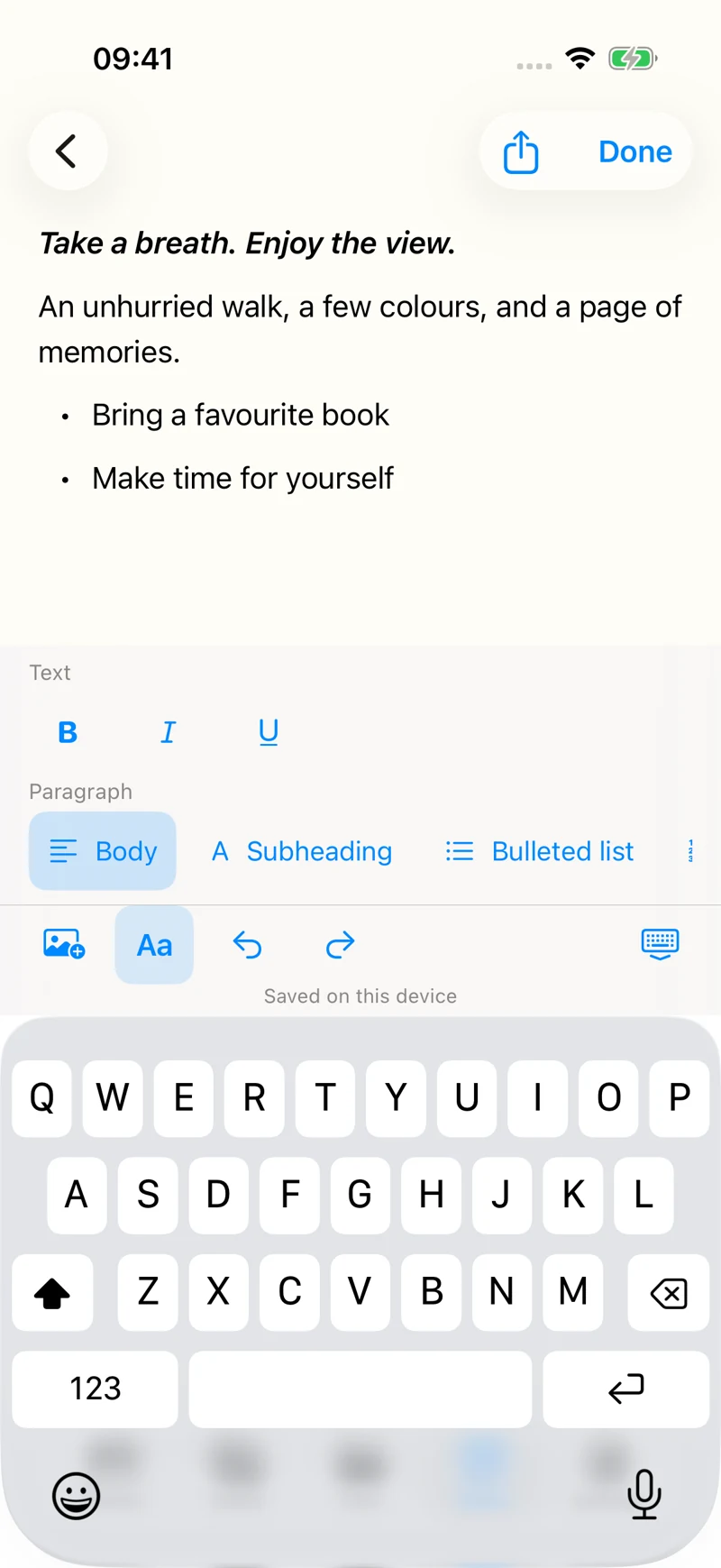
Write around your photos, give your thoughts structure, and keep each entry together. SealedPocket 1.3.11 brings a more natural diary editor to your local vault.
Version 1.3.11 is available in the verified US and Taiwan storefronts. Check your local App Store for features and prices.
Words and photos, in one flow
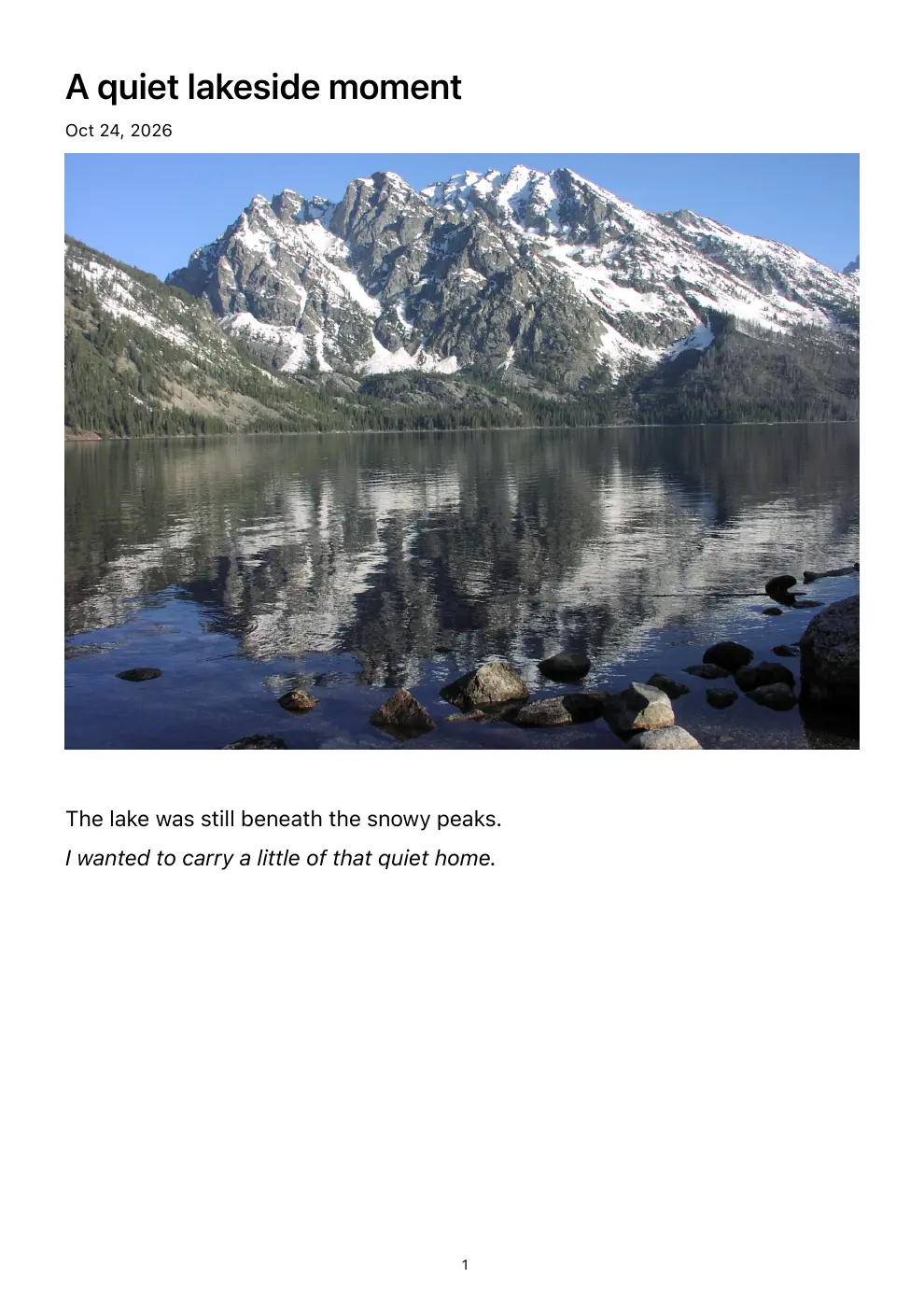
Place photos between paragraphs instead of keeping every image at the end. Read an entry without immediately opening the keyboard.
Formatting that means something
Use clear headings, bold, italic, underline, lists and quotes. A distinct title and readable body make longer entries easier to follow.
A copy you can keep
Existing VIP members can export a note as a PDF for saving or printing. PDF export is a paid VIP feature, not part of the free tier.